Console commands
Every Valheim console command: how to open the console, turn on the cheat commands and spawn any item or creature. The IDs are checked against the game data.
How to enable the console and cheats
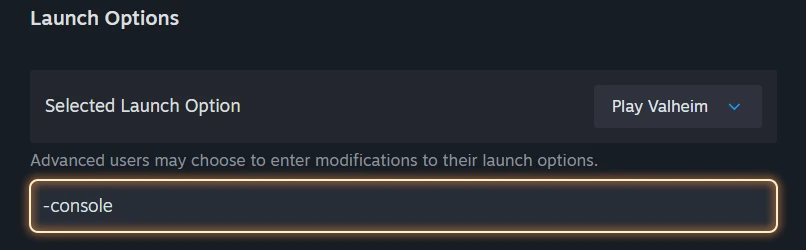
- Steam: right-click Valheim, open Properties and type
-consolein the Launch Options. In game, pressF5. - PC Game Pass: add
-consoleto the end of the Target field of aValheim.exeshortcut. In game, pressF5. - Xbox: hold LB, RB, LT and RT and press Menu. You type with the on-screen keyboard (the A button).
- Then enter
devcommands: the cheat commands are on. Entering it again turns them off.
Quick answers
How do I open the console in Valheim?
On Steam, add -console to the Launch Options, start the game and press F5. On PC Game Pass, add -console to the Target field of a Valheim.exe shortcut. On Xbox, hold LB, RB, LT and RT and press Menu. Then type devcommands to turn the cheat commands on.
Why does F5 not work?
Check that -console is in the launch options and restart the game, because the option is read only at launch. On many laptops F5 needs the Fn key held down. If the console opens but a command does nothing, type devcommands first.
Why can’t I use dev commands?
Cheat commands work in single player and in a world you host yourself. On a dedicated server they are not available to regular players. Type devcommands before the cheats.
Are there console commands on Xbox?
Yes. Hold LB, RB, LT and RT and press Menu, then type with the on-screen keyboard using the A button.
How do I turn on god mode or flying?
After devcommands, god toggles invincibility, fly toggles flying and nocost makes building free. Each command works as a switch: enter it again to turn it off.
Where do I find item IDs for spawn?
The IDs for spawn section below lists every item and creature of the wiki with its ID. Click an ID to copy the ready command and keep the letter case exactly as shown.
Player devcommands
| Command | What it does |
|---|---|
god | Toggles invincibility. |
ghost | Monsters stop noticing you. |
nocost | Building is free: no materials are spent. |
heal | Fully restores health and stamina. |
repairall | Repairs all of your equipment. |
respawn | The same as die: kills your character and you respawn. |
die | Kills your character. |
puke | Empties your stomach: all the food you ate disappears. |
addstatus <effect> | Applies a status effect by its ID. The list of effects is below. |
clearstatus | Removes all status effects from you. |
setpower <power> | Sets your active boss power and resets its cooldown. The power IDs are below. |
nomap | Turns the map off for your character. If the host runs it, the map is also turned off for players who join later. |
Skills and looks devcommands
| Command | What it does |
|---|---|
raiseskill <skill> <levels> | Raises a skill by the given number of levels. The skill names are below. |
resetskill <skill> | Resets the given skill. |
resetknownitems | Resets the known items and recipes. |
resetcharacter | Resets the character data. |
model <0|1> | Changes the character model: 0 is masculine, 1 is feminine. |
hair <1–23> | Changes the hairstyle. |
beard <1–16> | Changes the beard. |
Items devcommands
| Command | What it does |
|---|---|
spawn <ID> [amount] [level] [p|e|i] | Creates an item or a creature next to you. For creatures, level 3 means two stars (spawn Troll 1 3 creates a troll with two stars). Add * at the end of the name to spawn everything that contains the word. The letter p picks the spawned items up, e equips them, and i spawns only if you do not already have one. |
itemset <set> [keep] | Gives a ready-made gear set. With keep your current items are not dropped. The set names are below. |
inventorysize <number> | Sets the inventory size as a whole number (32 by default). Going beyond the standard grid can break the look of the interface. |
inventoryclean | Throws out items that sit in invalid inventory slots. |
removedrops | Removes all item drops lying on the ground nearby. |
forcedelete [radius] [*name] | Force-deletes objects within a radius (5 by default, 50 at most). If you give a name, only the matching objects are removed. Back up the world first. |
Creatures devcommands
| Command | What it does |
|---|---|
tame | Tames all tameable creatures nearby. |
killall | Kills all creatures nearby. |
killenemies | Kills all enemies nearby. |
killtame | Kills all tamed creatures nearby. |
aggravate | Makes all neutral creatures nearby hostile. |
removebirds | Removes all birds. |
removefish | Removes all fish. |
printcreatures | Shows the count and levels of active creatures. |
World, weather and time devcommands
| Command | What it does |
|---|---|
env <weather> | Forces the weather. The names are below. |
resetenv | Cancels the forced weather. |
wind <angle> <intensity> | Sets the wind direction and strength. |
resetwind | Returns the wind to normal. |
event <event> | Starts an event by name. The list of events is below. |
randomevent | Starts a random event. |
stopevent | Stops the current event. |
pevents <list|start|stop|here> | Shows persistent events or starts and stops them. |
players <number> | Forces the world difficulty as if the given number of players were online. 0 resets it. |
time | Shows the current in-game time. |
skiptime <seconds> | Skips ahead by the given number of in-game seconds. |
sleep | Skips the night to the morning. |
tod <0–1> | Forces the time of day: 0 is midnight and 0.5 is midday. The value −1 returns the normal flow of time. |
timescale <speed> [fade] | Changes the speed of in-game time. The fade time is 1 by default and 3 at most. |
snow [amount] | Adds or removes a layer of snow on all building pieces nearby. |
tombstone <name> | Creates a tombstone with the given name. |
vegetation | Spawns vegetation. |
resetbuildui | Resets the saved build menu data. |
save | Forces the world to save. |
location <location> [SAVE] | Spawns a location nearby. Without SAVE, saving the world is disabled for good, so use it on a test world only. |
genloc | Runs the generation of the world’s locations. It changes the world, so use it on a test world only. |
Map and teleporting devcommands
| Command | What it does |
|---|---|
printseeds | Shows the world seed (you need the text after the slash, and the number before it is its numeric form) and the seeds of the loaded dungeons. Handy on a server or in a friend’s world. How to find your world seed → Open the seed in the Seed Map → |
pos | Shows your current coordinates. |
goto <x> <z> | Teleports you to the given coordinates. |
find <text> [amount] | Searches the loaded objects and locations by name and pings the results on the map. If you give a number above 1, it places pins instead. |
findtp <text> | Teleports you to the nearest object with that name. |
findbiome <biome> | Marks the centers of biomes of the given type on the map. |
findbiometp <biome> | Finds the nearest biome of this type and teleports you there. |
exploremap | Reveals the whole map. |
resetmap | Resets the map exploration. |
resetsharedmap | Removes the shared map data from the cartography table. |
recall [name] | Teleports all players to you, or only the one whose name you give. |
resetspawn | Resets your spawn point. |
altbioms | Lists the biomes with their modifiers. |
haslocation | Checks whether the zone has a location. |
printlocations | Shows the count of loaded locations. |
optterrain | Optimizes old terrain modifications. |
nextseed <seed> | Forces the seed of the next dungeon. Saving the world is disabled for good, so use it on a test world only. |
biomeinfo | Shows info about the biome you are standing in. |
height | Shows the terrain height at your position. |
Flying and camera devcommands
The debugmode command turns on flying and a few more features. These keys work in it: Z toggles flying (Space goes up, Ctrl goes down), K kills the enemies nearby, L removes the drops on the ground nearby, B toggles free building.
| Command | What it does |
|---|---|
debugmode | Toggles the debug mode (flying, free building and more). The keys are described above. |
fly | Toggles flying. |
freefly | Toggles the free camera. |
ffsmooth <0|1> | Turns smooth free-camera movement on or off. |
fov <number> | Changes the field of view. |
Utility
| Command | What it does |
|---|---|
devcommands | Turns the cheat commands on. Entering it again turns them off. |
help [1–5] | Shows the list of commands. There are five pages; give the number after help. |
sortcraft <type> | Sorts the crafting list by name, type, weight or count (name, type, weight, count). |
filtercraft <text> | Filters the crafting list by text. |
clear | Clears the console window. |
maxfps <number> | Limits the frames per second. |
bind <key> <command> | Binds a command to a key. It can conflict with the game controls. |
unbind <key> | Removes your own key bind. |
printbinds | Shows the current key binds. |
resetbinds | Resets all key binds to the defaults. |
stats | Shows the player stats. |
achievements | Shows your stats and progress. |
confirmcheats | Confirms the use of cheat commands and shows whether they block achievement progress. On Xbox the game may ask for it after devcommands. |
yesiuseddevcommandsbutiwantmyachievementsanyway <1|0> | Items and pieces made with cheats normally do not count toward achievements. The value 1 turns that check off. |
setkey <key> | Sets a world global key. |
setkeyplayer <key> | Sets a key for the player. |
listkeys | Lists the active global keys. |
removekey <key> | Removes a global key. |
resetkeys | Clears all global keys. On a server there is also resetworldkeys. |
getstat <stat> | Shows the given stat. |
clearpopups | Clears all current unlock pop-ups. |
tutorialtoggle | Toggles Hugin’s hints. |
tutorialreset | Resets the tutorial data. |
Chat
| Command | What it does |
|---|---|
say <text> | Sends a chat message. |
s <text> | Sends a shout message. |
w <name> <text> | Sends a private message to a player. |
Debug and rare
Mostly developer tools that are poorly documented. You will hardly need them in a normal playthrough.
| Command | What it does |
|---|---|
xb:version | Shows the hash of the game build. |
cr | Forces unused assets to unload. |
gc | Shows garbage collector information. |
dpsdebug | Toggles the damage-per-second debug print. |
updatecover | Forces the shelter cover to refresh. |
exclusivefullscreen | Switches the window between exclusive fullscreen and borderless. |
cinematic <name> | Plays a cinematic. |
cinematicsleep <name> | Plays a cinematic during the next sleep for everyone. |
Server admin
These commands work only for players on the server admin list.
| Command | What it does |
|---|---|
kick <name|ip|userID> | Removes a player from the server. |
ban <name|ip|userID> | Bans a player. |
unban <ip|userID> | Removes a ban. |
banned | Lists the banned players. |
ping | Shows the connection ping. |
noportals | Turns portals off on the server. |
restartparty | Restarts the PlayFab party network. |
save | Forces the server world to save. |
info | Shows the server’s system information. |
lodbias <number> | Controls how far objects keep their detail on the server. It takes whole and fractional numbers (for example 1 or 2.5). |
setworldpreset <preset> | Sets the world difficulty preset. The value default resets all modifiers to the standard ones. The list of presets is below. |
setworldmodifier <modifier> <value> | Changes a single world modifier. Write the modifier name with a capital letter. To reset everything to the standard values, use setworldpreset default. The modifiers and their values are below. |
resetworldkeys | Resets the world’s global keys. |
Values for the commands
Presets for setworldpreset
The same presets as in the world creation menu. They work on a server for an admin. The default preset resets everything to the standard settings.
Modifiers for setworldmodifier
The modifier name starts with a capital letter and the value is lowercase. There is no separate “standard” value: use the default preset to reset. The options match the world menu.
Combat DeathPenalty Resources Raids Portals Sets for itemset
Gear sets for the stages of the game, plus a fisherman set (Fisherman).
Effects for addstatus
The game’s effect IDs: conditions, potions and meads, and gear effects.
Powers for setpower
The Forsaken powers in progression order.
Skills for raiseskill and resetskill
Type the names exactly as listed, without spaces.
Events for event
Every event enabled in the game. Raids have a page of their own on the wiki.
Weather for env
Two names with a space are left out: Heath clear and DeepForest Mist.
IDs for spawn
Every item and creature of the wiki with its ID for the spawn command. Click an ID to copy the ready command. The name links to the item or creature page. Type the ID exactly, keeping the letter case.
Nothing found.
Weapons
One-handed weapons and bombs
-
 Abyssal Harpoon
 -
 Abyssal Razor
 -
 Ancient Bark Spear
 -
 Basalt Bomb
 -
 Bile Bomb
 -
 Black Metal Axe
 -
 Black Metal Knife
 -
 Black Metal Sword
 -
 Blob Bomb: Elite Poison
 -
 Blob Bomb: Frost
 -
 Blob Bomb: Lava
 -
 Blob Bomb: Poison
 -
 Blob Bomb: Pulp
 -
 Blob Bomb: Tar
 -
 Bloodgeon
 -
 Bronze Atgeir
 -
 Bronze Axe
 -
 Bronze Mace
 -
 Bronze Spear
 -
 Bronze Sword
 -
 Carapace Spear
 -
 Club
Club -
 Copper Knife
 -
 Dvergr Lantern
 -
 Dvergr Tankard
 -
 Dyrnwyn
 -
 Ember Charge
 -
 Fang Spear
 -
 Flametal Mace
 -
 Flint Axe
 -
 Flint Knife
 -
 Flint Spear
 -
 Frostfire Dagger
 -
 Frostfire Mace
 -
 Frostfire Spear
 -
 Frostfire Sword
 -
 Frostner
 -
 Horn of Celebration
 -
 Iron Axe
 -
 Iron Mace
 -
 Iron Sword
 -
 Jotun Bane
 -
 Klossen
 -
 Mead Horn of Oden
 -
 Mistwalker
 -
 Nidhögg
 -
 Nidhögg the Bleeding
 -
 Nidhögg the Primal
 -
 Nidhögg the Thundering
 -
 Nord Dagger
 -
 Nord Mace
 -
 Nord Spear
 -
 Nord Sword
 -
 Ooze Bomb
 -
 Porcupine
 -
 Silver Knife
 -
 Silver Sword
 -
 Smoke Bomb
 -
 Splitnir
 -
 Splitnir the Bleeding
 -
 Splitnir the Primal
 -
 Splitnir the Storming
 -
 Stone Axe
 -
 Storm Star
 -
 Tankard
 -
 Thunderblood Dagger
 -
 Thunderblood Mace
 -
 Thunderblood Spear
 -
 Thunderblood Sword
 -
 Torch
Torch -
 Wooden Atgeir
 -
 Wooden Axe
 -
 Wooden Knife
 -
 Wooden Mace
 -
 Wooden Spear
 -
 Wooden Sword
Two-handed weapons
-
 Antler Pickaxe
 -
 Battleaxe
 -
 Berserkir Axes
 -
 Black Metal Atgeir
 -
 Black Metal Battleaxe
 -
 Black Metal Pickaxe
 -
 Bleeding Berserkir Axes
 -
 Bronze Pickaxe
 -
 Brutal Slayer
 -
 Crystal Battleaxe
 -
 Dead Raiser
 -
 Demolisher
 -
 Dundr
Dundr -
 Early Axes
 -
 Echo Spike
 -
 Flesh Rippers
 -
 Frostfire Atgeir
 -
 Frostfire Axe
 -
 Frostfire Greataxe
 -
 Frostfire Greatsword
 -
 Frostfire Knucklechains
 -
 Frostfire Sledge
 -
 Himminafl
 -
 Iron Atgeir
 -
 Iron Pickaxe
 -
 Iron Sledge
 -
 Krom
Krom -
 Lightning Strike
 -
 Nord Atgeir
 -
 Nord Axe
 -
 Nord Greataxe
 -
 Nord Greatsword
 -
 Nord Knucklechains
 -
 Nord Sledge
 -
 Northern Vengeance
 -
 Paws of the Bear
 -
 Primal Berserkir Axes
 -
 Primal Slayer
 -
 Scourging Slayer
 -
 Skoll and Hati
 -
 Skull Splittur
 -
 Slayer
 -
 Spirit Caller
 -
 Staff of Embers
 -
 Staff of Fracturing
 -
 Staff of Frost
 -
 Staff of Protection
 -
 Staff of the Wild
 -
 Stagbreaker
 -
 Thunderblood Atgeir
 -
 Thunderblood Axe
 -
 Thunderblood Greataxe
 -
 Thunderblood Greatsword
 -
 Thunderblood Knucklechains
 -
 Thunderblood Sledge
 -
 Thundering Berserkir Axes
 -
 Trollstav
 -
 Vilebone Maulclaws
 -
 Wooden Battleaxe
 -
 Wooden Greatsword
 -
 Wooden Sledge
Bows


Ammo
-
 Black Metal Bolt
 -
 Black Metal Missile
 -
 Bloodgold Arrow
 -
 Bloodgold Bolt
 -
 Bloodgold Missile
 -
 Bloodgold Payload
 -
 Bone Bolt
 -
 Bronzehead Arrow
 -
 Carapace Arrow
 -
 Carapace Bolt
 -
 Charred Arrow
 -
 Charred Bolt
 -
 Explosive Payload
 -
 Fire Arrow
 -
 Flametal Missile
 -
 Flinthead Arrow
 -
 Frost Arrow
 -
 Grausten Payload
 -
 Iron Bolt
 -
 Ironhead Arrow
 -
 Needle Arrow
 -
 Obsidian Arrow
 -
 Poison Arrow
 -
 Silver Arrow
 -
 Wood Arrow
 -
 Wooden Missile
Shields
-
 Banded Shield
 -
 Black Metal Shield
 -
 Black Metal Tower Shield
 -
 Bone Tower Shield
 -
 Bronze Buckler
 -
 Carapace Buckler
 -
 Carapace Shield
 -
 Flametal Shield
 -
 Flametal Tower Shield
 -
 Iron Buckler
 -
 Iron Tower Shield
 -
 Nord Buckler
 -
 Nord Greatshield
 -
 Nord Shield
 -
 Serpent Scale Shield
 -
 Shield of Roots
 -
 Silver Shield
 -
 Sparkler
 -
 Wood Shield
 -
 Wood Tower Shield
Armor
Helmets
-
 Blue Tied Headscarf
 -
 Bronze Helmet
 -
 Brown Fur Cap
 -
 Carapace Helmet
 -
 Celebratory Cap
 -
 Crown of Roots
 -
 Crown of Valheim
 -
 Drake Helmet
 -
 Dverger Circlet
 -
 Eitr-weave Hood
 -
 Extravagant Green Cap
 -
 Extravagant Orange Cap
 -
 Fenris Hood
 -
 Fishing Hat
 -
 Flametal Helmet
 -
 Green Twisted Headscarf
 -
 Grey Fur Cap
 -
 Headband
 -
 Headdress of the Bear
 -
 Headdress of the Caller
 -
 Helmet of the Protector
 -
 Hood of Ask
 -
 Hood of Embla
 -
 Hood of Oden
 -
 Hood of the Vanguard
 -
 Iron Helmet
 -
 Leather Helmet
 -
 Lox Fur Hood
 -
 Midsummer Crown
 -
 Padded Helmet
 -
 Pointy Hat
 -
 Red Twisted Headscarf
 -
 Root Mask
 -
 Simple Purple Cap
 -
 Simple Red Cap
 -
 Straw Hat
 -
 Troll Leather Hood
 -
 Vilebone Visage
 -
 Yellow Tied Headscarf
 -
 Yule Hat
Chest armor
-
 Blue Dress with Beads
 -
 Blue Dress with Shawl
 -
 Breastplate of Ask
 -
 Breastplate of the Protector
 -
 Bronze Plate Tunic
 -
 Brown Dress with Beads
 -
 Brown Dress with Shawl
 -
 Carapace Breastplate
 -
 Chestpiece of the Vanguard
 -
 Eitr-weave Robe
 -
 Fenris Coat
 -
 Flametal Breastplate
 -
 Harvest Dress
 -
 Harvest Tunic
 -
 Iron Scale Mail
 -
 Leather Tunic
 -
 Lox Fur Jacket
 -
 Padded Cuirass
 -
 Patterns of the Bear
 -
 Plain Blue Dress
 -
 Plain Brown Dress
 -
 Plain Yellow Dress
 -
 Rag Tunic
 -
 Robes of Embla
 -
 Robes of the Caller
 -
 Root Harnesk
 -
 Simple Undyed Dress
 -
 Troll Leather Tunic
 -
 Vilebone Cage
 -
 Wolf Hide Chestpiece
 -
 Yellow Dress with Beads
 -
 Yellow Dress with Shawl
Leg armor
-
 Bronze Plate Leggings
 -
 Carapace Greaves
 -
 Eitr-weave Trousers
 -
 Fenris Leggings
 -
 Flametal Greaves
 -
 Iron Greaves
 -
 Leather Trousers
 -
 Loincloth of the Bear
 -
 Lox Fur Trousers
 -
 Padded Greaves
 -
 Rag Trousers
 -
 Root Leggings
 -
 Troll Leather Trousers
 -
 Trousers of Ask
 -
 Trousers of Embla
 -
 Trousers of the Caller
 -
 Trousers of the Protector
 -
 Trousers of the Vanguard
 -
 Vilebone Drapes
 -
 Wolf Hide Trousers
Capes
-
 Ashen Cape
 -
 Asksvin Cloak
 -
 Blue Tunic with Beads
 -
 Blue Tunic with Cape
 -
 Cape of Oden
 -
 Cape of the Caller
 -
 Deer Hide Cape
 -
 Feather Cape
 -
 Linen Cape
 -
 Lox Cape
 -
 Moose Hide Cape
 -
 Plain Blue Tunic
 -
 Plain Red Tunic
 -
 Plain Yellow Tunic
 -
 Red Tunic with Beads
 -
 Red Tunic with Cape
 -
 Simple Undyed Tunic
 -
 Troll Hide Cape
 -
 Wolf Fur Cape
 -
 Yellow Tunic with Beads
 -
 Yellow Tunic with Cape
Belts and other


Food and potions
Food
-
 Anglerfish
 -
 Ashlands Gourmet Bowl
 -
 Baked Poteitr
 -
 Black Forest Buffet Platter
 -
 Black Soup
 -
 Blood Pudding
 -
 Blueberries
 -
 Boar Jerky
 -
 Bread
Bread -
 Carrot
 -
 Carrot Soup
 -
 Cloudberries
 -
 Cooked Asksvin Tail
 -
 Cooked Bear Meat
 -
 Cooked Boar Meat
 -
 Cooked Bonemaw Meat
 -
 Cooked Chicken Meat
 -
 Cooked Deer Meat
 -
 Cooked Egg
 -
 Cooked Fish
 -
 Cooked Hare Meat
 -
 Cooked Lox Meat
 -
 Cooked Moose Meat
 -
 Cooked Seal Blubber
 -
 Cooked Seeker Meat
 -
 Cooked Serpent Meat
 -
 Cooked Volture Meat
 -
 Cooked Wolf Meat
 -
 Coral Cod
 -
 Deer Stew
 -
 Eyescream
 -
 Fiddlehead
 -
 Fiery Svinstew
 -
 Fish 'n' Bread
 -
 Fish Soup
 -
 Fish Wraps
 -
 Frosted Sweetbread
 -
 Giant Herring
 -
 Grilled Neck Tail
 -
 Grouper
 -
 Hearty Mountain Logger's Stew
 -
 Honey
Honey -
 Honey Glazed Chicken
 -
 Jotun Puffs
 -
 Kale
Kale -
 Kale Chips
 -
 Lingonberries
 -
 Lingonberry Juice
 -
 Lox Meat Pie
 -
 Luminous Larva
 -
 Magecap
 -
 Magmafish
 -
 Marinated Greens
 -
 Mashed Meat
 -
 Meat In Bread
 -
 Meat Platter
 -
 Meatballs and Poteitr
 -
 Minced Meat Sauce
 -
 Misthare Supreme
 -
 Muckshake
 -
 Mushroom
 -
 Mushroom Omelette
 -
 Mushrooms Galore á la Mistlands
 -
 Northern Morning Fare
 -
 Northern Salmon
 -
 Oat Milk
 -
 Oatmeal
 -
 Oats
Oats -
 Onion
Onion -
 Onion Soup
 -
 Oven Pancake
 -
 Pancakes
 -
 Perch
Perch -
 Pike
Pike -
 Piquant Pie
 -
 Plains Pie Picnic
 -
 Poteitr
 -
 Pufferfish
 -
 Pulled Bear
 -
 Queen's Jam
 -
 Raspberries
 -
 Roasted Crust Pie
 -
 Royal Jelly
 -
 Sailor's Bounty
 -
 Salad
Salad -
 Sausages
 -
 Scorching Medley
 -
 Seal Meat Soup
 -
 Seeker Aspic
 -
 Serpent Stew
 -
 Sizzling Berry Broth
 -
 Smoke Puff
 -
 Smoked Fish
 -
 Smoked Moose Meat
 -
 Sparkling Shroomshake
 -
 Spicy Marmalade
 -
 Stuffed Mushroom
 -
 Swamp Dweller's Delight
 -
 Tetra
Tetra -
 Trollfish
 -
 Tuna
Tuna -
 Turnip Stew
 -
 Vineberry Cluster
 -
 Whole Roasted Meadow Boar
 -
 Wolf Jerky
 -
 Wolf Skewer
 -
 Yellow Mushroom
 -
 Yggdrasil Porridge
Potions and meads
-
 Anti-Sting Concoction
 -
 Berserkir Mead
 -
 Brew of Animal Whispers
 -
 Draught of Vananidir
 -
 Fire Resistance Barley Wine
 -
 Frost Resistance Mead
 -
 Lightfoot Mead
 -
 Lingering Eitr Mead
 -
 Lingering Healing Mead
 -
 Lingering Stamina Mead
 -
 Love Potion
 -
 Major Healing Mead
 -
 Mead of Troll Endurance
 -
 Medium Healing Mead
 -
 Medium Stamina Mead
 -
 Minor Eitr Mead
 -
 Minor Healing Mead
 -
 Minor Stamina Mead
 -
 Poison Resistance Mead
 -
 Tasty Mead
 -
 Tonic of Ratatosk
Tools and trinkets
Tools


Trinkets


Idols
-
 Black Marble Battle Idol
 -
 Black Marble Protection Idol
 -
 Black Metal Battle Idol
 -
 Black Metal Protection Idol
 -
 Bloodgold Battle Idol
 -
 Bloodgold Protection Idol
 -
 Bronze Battle Idol
 -
 Bronze Protection Idol
 -
 Flametal Battle Idol
 -
 Flametal Protection Idol
 -
 Iron Battle Idol
 -
 Iron Protection Idol
 -
 Silver Battle Idol
 -
 Silver Protection Idol
 -
 Wooden Battle Idol
 -
 Wooden Protection Idol
Materials
Ores and metals


Wood and stone


Hides and animal parts
-
 Asksvin Bladder
 -
 Asksvin Hide
 -
 Asksvin Neck
 -
 Asksvin Pelvis
 -
 Asksvin Ribcage
 -
 Asksvin Skull
 -
 Bear Hide
 -
 Bear Paw
 -
 Bilebag
 -
 Bloodbag
 -
 Bone Fragments
 -
 Bonemaw Tooth
 -
 Carapace
 -
 Charred Bone
 -
 Chitin
 -
 Deer Hide
 -
 Elaking Hair Bundle
 -
 Entrails
 -
 Feathers
 -
 Fenris Claw
 -
 Fenris Hair
 -
 Freeze Gland
 -
 Fuling Totem
 -
 Greydwarf Eye
 -
 Guck
Guck -
 Leather Scraps
 -
 Long Claws
 -
 Lox Pelt
 -
 Mandible
 -
 Moose Hide
 -
 Moose Sinew
 -
 Morgen Heart
 -
 Morgen Sinew
 -
 Scale Hide
 -
 Seal Pelt
 -
 Serpent Scale
 -
 Troll Hide
 -
 Vile Ribcage
 -
 Withered Bone
 -
 Wolf Fang
 -
 Wolf Pelt
 -
 Writhan Roots
Kitchen
-
 Asksvin Egg
 -
 Asksvin Tail
 -
 Barley Flour
 -
 Bear Meat
 -
 Boar Meat
 -
 Bonemaw Meat
 -
 Bread Dough
 -
 Chicken Meat
 -
 Cured Squirrel Hamstring
 -
 Deer Meat
 -
 Dragon Egg
 -
 Egg
Egg -
 Fiery Spice Powder
 -
 Fragrant Bundle
 -
 Fresh Seaweed
 -
 Grasslands Herbalist Harvest
 -
 Hare Meat
 -
 Herbs of the Hidden Hills
 -
 Lox Meat
 -
 Moose Meat
 -
 Mountain Peak Pepper Powder
 -
 Neck Tail
 -
 Oat Flour
 -
 Oven Pancake Batter
 -
 Powdered Dragon Eggshells
 -
 Pungent Pebbles
 -
 Raw Fish
 -
 Raw Kale Chips
 -
 Rotten Meat
 -
 Seafarer's Herbs
 -
 Seal Blubber
 -
 Seasoning of the Gourd
 -
 Seeker Meat
 -
 Serpent Meat
 -
 Unbaked Lox Pie
 -
 Unbaked Poteitr
 -
 Unbaked Sweetbread
 -
 Uncooked Fish 'n' Bread
 -
 Uncooked Honey Glazed Chicken
 -
 Uncooked Meat Platter
 -
 Uncooked Misthare Supreme
 -
 Uncooked Piquant Pie
 -
 Uncooked Roasted Crust Pie
 -
 Uncooked Stuffed Mushroom
 -
 Volture Egg
 -
 Volture Meat
 -
 Wolf Meat
 -
 Woodland Herb Blend
Plants and seeds


Rare and magical
-
 Black Core
 -
 Blood Clot
 -
 Bloodstone
 -
 Celestial Feather
 -
 Corked Vial
 -
 Dead Pulp
 -
 Ectoplasm
 -
 Embers
 -
 Frostcore
 -
 Frostfire Essence
 -
 Iolite
 -
 Jade
Jade -
 Malicious Blood
 -
 Memorial Coal
 -
 Molten Core
 -
 Ooze
Ooze -
 Proustite Powder
 -
 Queen Bee
 -
 Refined Eitr
 -
 Shield Core
 -
 Soft Tissue
 -
 Surtling Core
 -
 Thunder Stone
 -
 Thunderblood Essence
 -
 Wisp
Wisp -
 Ymir Flesh
Parts and blanks
-
 Asksvin Saddle
 -
 Barber Kit
 -
 Barrel Hoops
 -
 Basic Fireworks
 -
 Blue Fireworks
 -
 Bronze Nails
 -
 Candle Wick
 -
 Ceramic Plate
 -
 Chain
Chain -
 Curious Axe Head
 -
 Cyan Fireworks
 -
 Dvergr Extractor
 -
 Green Fireworks
 -
 Hook
Hook -
 Iron Nails
 -
 Leather Straps
 -
 Linen Thread
 -
 Lox Saddle
 -
 Mechanical Spring
 -
 Moose Saddle
 -
 Mysterious Axe Head
 -
 Needle
 -
 Nornathread
 -
 Purple Fireworks
 -
 Red Fireworks
 -
 Scythe Handle
 -
 Sharpening Stone
 -
 Yellow Fireworks
Molds and blanks
-
 Cast: Breastplate of the Protector
 -
 Cast: Chestpiece of the Vanguard
 -
 Cast: Echo Spike
 -
 Cast: Headdress of the Caller
 -
 Cast: Helmet of the Protector
 -
 Cast: Hood of the Vanguard
 -
 Cast: Intricate Key
 -
 Cast: Lightning Strike
 -
 Cast: Nord Atgeir
 -
 Cast: Nord Axe
 -
 Cast: Nord Bow
 -
 Cast: Nord Buckler
 -
 Cast: Nord Crossbow
 -
 Cast: Nord Dagger
 -
 Cast: Nord Greataxe
 -
 Cast: Nord Greatshield
 -
 Cast: Nord Greatsword
 -
 Cast: Nord Knucklechains
 -
 Cast: Nord Mace
 -
 Cast: Nord Shield
 -
 Cast: Nord Sledge
 -
 Cast: Nord Spear
 -
 Cast: Nord Sword
 -
 Cast: Northern Vengeance
 -
 Cast: Robes of the Caller
 -
 Cast: Spirit Caller
 -
 Cast: Trousers of the Caller
 -
 Cast: Trousers of the Protector
 -
 Cast: Trousers of the Vanguard
 -
 Mould: Breastplate of the Protector
 -
 Mould: Chestpiece of the Vanguard
 -
 Mould: Echo Spike
 -
 Mould: Headdress of the Caller
 -
 Mould: Helmet of the Protector
 -
 Mould: Hood of the Vanguard
 -
 Mould: Intricate Key
 -
 Mould: Lightning Strike
 -
 Mould: Nord Atgeir
 -
 Mould: Nord Axe
 -
 Mould: Nord Bow
 -
 Mould: Nord Buckler
 -
 Mould: Nord Crossbow
 -
 Mould: Nord Dagger
 -
 Mould: Nord Greataxe
 -
 Mould: Nord Greatshield
 -
 Mould: Nord Greatsword
 -
 Mould: Nord Knucklechains
 -
 Mould: Nord Mace
 -
 Mould: Nord Shield
 -
 Mould: Nord Sledge
 -
 Mould: Nord Spear
 -
 Mould: Nord Sword
 -
 Mould: Northern Vengeance
 -
 Mould: Robes of the Caller
 -
 Mould: Spirit Caller
 -
 Mould: Trousers of the Caller
 -
 Mould: Trousers of the Protector
 -
 Mould: Trousers of the Vanguard
Bait


Potion bases
-
 Barley Wine Base: Fire Resistance
 -
 Mead Base: Animal Whispers
 -
 Mead Base: Anti-Sting
 -
 Mead base: Berserkir
 -
 Mead Base: Frost Resistance
 -
 Mead Base: Lightfoot
 -
 Mead Base: Lingering Eitr
 -
 Mead Base: Lingering Health
 -
 Mead Base: Lingering Stamina
 -
 Mead Base: Major Healing
 -
 Mead Base: Medium Healing
 -
 Mead Base: Medium Stamina
 -
 Mead Base: Minor Eitr
 -
 Mead Base: Minor Healing
 -
 Mead Base: Minor Stamina
 -
 Mead Base: Poison Resistance
 -
 Mead base: Ratatosk
 -
 Mead Base: Tasty
 -
 Mead Base: Troll Endurance
 -
 Mead Base: Vananidir
Trophies
-
 Abomination Trophy
 -
 Asksvin Trophy
 -
 Barka Trophy
 -
 Bear Trophy
 -
 Blob Trophy
 -
 Boar Trophy
 -
 Bonemass Trophy
 -
 Bonemaw Trophy
 -
 Brenna Trophy
 -
 Cultist Trophy
 -
 Deathsquito Trophy
 -
 Deer Trophy
 -
 Drake Trophy
 -
 Draugr Elite Trophy
 -
 Draugr Trophy
 -
 Dvergr Trophy
 -
 Eikthyr Trophy
 -
 Elaking Trophy
 -
 Eyeless One Trophy
 -
 Fader Trophy
 -
 Fallen Valkyrie Trophy
 -
 Fenring Trophy
 -
 Frost Blob Trophy
 -
 Fuling Berserker Trophy
 -
 Fuling Shaman Trophy
 -
 Fuling Trophy
 -
 Geirrhafa Trophy
 -
 Ghost Trophy
 -
 Gjall Trophy
 -
 Greydwarf Brute Trophy
 -
 Greydwarf Shaman Trophy
 -
 Greydwarf Trophy
 -
 Growth Trophy
 -
 Hare Trophy
 -
 Hexen Trophy
 -
 Krigen Trophy
 -
 Kvastur
 -
 Lava Blob Trophy
 -
 Leech Trophy
 -
 Lox Trophy
 -
 Marksman Trophy
 -
 Moder Trophy
 -
 Moose Trophy
 -
 Morgen Trophy
 -
 Neck Trophy
 -
 Pulp Trophy
 -
 Rancid Remains Trophy
 -
 Seal Trophy
 -
 Seeker Soldier Trophy
 -
 Seeker Trophy
 -
 Serpent Trophy
 -
 Skeleton Trophy
 -
 Stone Golem Trophy
 -
 Surtling Trophy
 -
 The Elder Trophy
 -
 The Queen Trophy
 -
 Thungr Trophy
 -
 Tick Trophy
 -
 Troll Trophy
 -
 Ulv Trophy
 -
 Vile Trophy
 -
 Volture Trophy
 -
 Warlock Trophy
 -
 Warrior Trophy
 -
 Wolf Trophy
 -
 Wraith Trophy
 -
 Writhan Trophy
 -
 Yagluth Trophy
 -
 Zil Trophy
Keys and boss loot
-
 Bell
Bell -
 Bell Fragment
 -
 Dragon Tear
 -
 Dyrnwyn Blade Fragment
 -
 Dyrnwyn Hilt Fragment
 -
 Dyrnwyn Tip Fragment
 -
 Hard Antler
 -
 Hildir's Brass Chest
 -
 Hildir's Brass Key
 -
 Hildir's Bronze Chest
 -
 Hildir's Bronze Key
 -
 Hildir's Silver Chest
 -
 Hildir's Silver Key
 -
 Intricate Key
 -
 Kindled Ribs
 -
 Majestic Carapace
 -
 Sacrificial Blood
 -
 Sealbreaker
 -
 Sealbreaker Fragment
 -
 Swamp Key
 -
 Torn Spirit
Valuables


Building pieces
Crafting stations
-
 Adze
Adze -
 Anvils
 -
 Artisan Press
 -
 Artisan Table
 -
 Beehive
 -
 Birds' Nest
 -
 Black Forge
 -
 Black Forge Cooler
 -
 Blast Furnace
 -
 Butcher's Table
 -
 Cauldron
 -
 Charcoal Kiln
 -
 Chopping Block
 -
 Cooking Station
 -
 Eitr Refinery
 -
 Eternal Pyre
 -
 Feathery Wreath
 -
 Fermenter
 -
 Food Preparation Table
 -
 Forge
Forge -
 Forge Bellows
 -
 Forge Cooler
 -
 Forge Tool Rack
 -
 Frigid Kiln
 -
 Frost Foundry
 -
 Galdr Table
 -
 Gem Cutter
 -
 Grinding Wheel
 -
 Iron Cooking Station
 -
 Mead Ketill
 -
 Metal Cutter
 -
 Mortar and Pestle
 -
 Obliterator
 -
 Pots and Pans
 -
 Rolling Pins and Cutting Boards
 -
 Rune Table
 -
 Sap Extractor
 -
 Smelter
 -
 Smith's Anvil
 -
 Smith's Aprons
 -
 Smoker
 -
 Spice Rack
 -
 Spinning Wheel
 -
 Standing Loom
 -
 Stone Oven
 -
 Stonecutter
 -
 Tanning Rack
 -
 Tool Shelf
 -
 Unfading Candles
 -
 Vice
Vice -
 Windmill
 -
 Wisp Fountain
 -
 Workbench
Decor and comfort
-
 Antler Throne
 -
 Armour Stand
 -
 Ashwood Bed
 -
 Ashwood Bench
 -
 Asksvin Rug
 -
 Asksvin Skeleton
 -
 Barber Station
 -
 Bearskin Rug
 -
 Bed
Bed -
 Black Banner
 -
 Black Marble Bench
 -
 Black Marble Table
 -
 Black Marble Throne
 -
 Blue Banner
 -
 Blue Jute Carpet
 -
 Blue Standing Brazier
 -
 Blue, Red and White Banner
 -
 Bone Throne
 -
 Bonfire
 -
 Campfire
 -
 Cartography Table
 -
 Carved Bench
 -
 Carved Chair
 -
 Darkwood Chair
 -
 Deer Rug
 -
 Dragon Bed
 -
 Dvergr Pole Lantern
 -
 Dvergr Wall Lantern
 -
 Fey Lights
 -
 Flower Garland
 -
 Green Banner
 -
 Hanging Brazier
 -
 Hare Rug
 -
 Hearth
 -
 Hooded Lantern
 -
 Hot Tub
 -
 Iron Fire Pit
 -
 Item Stand (Horizontal)
 -
 Item Stand (Vertical)
 -
 Large Green Pot
 -
 Lava Lantern
 -
 Long Carved Table
 -
 Long Heavy Table
 -
 Lox Rug
 -
 Medium Green Pot
 -
 Moose Hide Carpet
 -
 Orange Banner
 -
 Purple Banner
 -
 Raven Throne
 -
 Red Banner
 -
 Red Jute Carpet
 -
 Resin Candle
 -
 Round Table
 -
 Sconce
 -
 Sealskin Rug
 -
 Sign
Sign -
 Sitting Log
 -
 Small Green Pot
 -
 Snow Lantern
 -
 Square Carved Table
 -
 Standing Blue-burning Iron Torch
 -
 Standing Brazier
 -
 Standing Green-burning Iron Torch
 -
 Standing Iron Torch
 -
 Standing Wood Torch
 -
 Stone Throne
 -
 Stool
Stool -
 Straw
Straw -
 Table
Table -
 Treasure Chest
 -
 White and Blue Striped Banner
 -
 White and Red Striped Banner
 -
 White Banner
 -
 Wolf Rug
 -
 Wood Bench
 -
 Wood Chair
 -
 Yellow Banner
Storage and transport


Defense


Siege
Seasonal


Structures
-
 Ancient metal stack
 -
 Ashwood Arch
 -
 Ashwood Arched Wall
 -
 Ashwood Beam 1 m
 -
 Ashwood Beam 2 m
 -
 Ashwood Beam 26°
 -
 Ashwood Beam 45°
 -
 Ashwood Beam 67°
 -
 Ashwood Decorative Floor
 -
 Ashwood Decorative Wall
 -
 Ashwood Decorative Window
 -
 Ashwood Divider
 -
 Ashwood Door
 -
 Ashwood Floor 1x1
 -
 Ashwood Floor 2x2
 -
 Ashwood Half Wall
 -
 Ashwood Pole 1 m
 -
 Ashwood Pole 2 m
 -
 Ashwood Quarter Wall
 -
 Ashwood Roof Cross 26°
 -
 Ashwood Roof Cross 45°
 -
 Ashwood Roof Cross 67°
 -
 Ashwood Stack
 -
 Ashwood Stair
 -
 Ashwood Top Arch
 -
 Ashwood Wall
 -
 Ashwood Wall 26°
 -
 Ashwood Wall 26° (Inverted)
 -
 Ashwood Wall 45°
 -
 Ashwood Wall 45° (Inverted)
 -
 Ashwood Wall 67°
 -
 Ashwood Wall 67° (Inverted)
 -
 Black Marble 1x1x1
 -
 Black Marble 2x1x1
 -
 Black Marble 2x2x2
 -
 Black Marble Arch
 -
 Black Marble Column Small
 -
 Black Marble Column Wide
 -
 Black Marble Cornice
 -
 Black Marble Cornice Corner
 -
 Black Marble Floor
 -
 Black Marble Floor Tile Large
 -
 Black Marble Floor Tile Small
 -
 Black Marble Floor Triangle
 -
 Black Marble Pile
 -
 Black Marble Plinth
 -
 Black Marble Plinth Corner
 -
 Black Marble Quarter Spire
 -
 Black Marble Stair
 -
 Black Marble Wall Tile Large
 -
 Black Marble Wall Tile Small
 -
 Black Marble Wall Tile Tall
 -
 Black Metal Stack
 -
 Bloodgold Stack
 -
 Blue Jute Curtain
 -
 Blue Jute Drapes
 -
 Bone Stack
 -
 Bronze Stack
 -
 Cage Floor 1x1
 -
 Cage Floor 2x2
 -
 Cage Wall 1x1
 -
 Cage Wall 2x2
 -
 Carved Darkwood Divider
 -
 Coal Pile
 -
 Coin Pile
 -
 Coin Stack
 -
 Copper Stack
 -
 Corewood Stack
 -
 Crystal Wall 1x1
 -
 Darkwood Arch
 -
 Darkwood Beam 2 m
 -
 Darkwood Beam 26°
 -
 Darkwood Beam 4 m
 -
 Darkwood Beam 45°
 -
 Darkwood beam 67°
 -
 Darkwood Gate
 -
 Darkwood Pole 2m
 -
 Darkwood Pole 4m
 -
 Decorated Timber Beam 26°
 -
 Decorated Timber Beam 2m
 -
 Decorated Timber Beam 45°
 -
 Decorated Timber Beam 67°
 -
 Decorated Timber Pole 2m
 -
 Dvergr Metal Wall
 -
 Dvergr Spiral Staircase Left
 -
 Dvergr Spiral Staircase Right
 -
 Dvergr Wall
 -
 Finewood Stack
 -
 Flametal Beam
 -
 Flametal Gate
 -
 Flametal Pillar
 -
 Flametal Stack
 -
 Flint Pile
 -
 Grausten Arched Roof
 -
 Grausten Arched Roof Corner
 -
 Grausten Arched Roof Corner
 -
 Grausten Floor 1x1
 -
 Grausten Floor 2x2
 -
 Grausten Floor 4x4
 -
 Grausten Medium Arch
 -
 Grausten Medium Beam
 -
 Grausten Medium Pillar
 -
 Grausten Pile
 -
 Grausten Roof
 -
 Grausten Roof Corner
 -
 Grausten Roof Corner
 -
 Grausten Small Arch
 -
 Grausten Small Beam
 -
 Grausten Small Pillar
 -
 Grausten Stairs
 -
 Grausten Steep Stairs
 -
 Grausten Tapered Pillar
 -
 Grausten Tapered Pillar (Inverted)
 -
 Grausten Wall 1x2
 -
 Grausten Wall 2x2
 -
 Grausten Wall 4x2
 -
 Grausten Wall Arch
 -
 Grausten Wall Arch (Inverted)
 -
 Grausten Window 2x2
 -
 Grausten Window 4x2
 -
 Hexagonal Gate
 -
 Ice Block
 -
 Iron Gate
 -
 Iron Stack
 -
 Lathed Timber Wall
 -
 Log Beam 2 m
 -
 Log Beam 26°
 -
 Log Beam 4 m
 -
 Log Beam 45°
 -
 Log Beam 67°
 -
 Log Pole 2 m
 -
 Log Pole 4 m
 -
 Obsidian Pile
 -
 Pile of Skulls
 -
 Raven Adornment
 -
 Red Jute Curtain
 -
 Roundpole Fence
 -
 Roundpole Gate
 -
 Rustic Drawbridge
 -
 Scalewood Half Wall
 -
 Scalewood Quarter Wall
 -
 Scalewood Wall
 -
 Scalewood Wall 26° Left
 -
 Scalewood Wall 26° Left (Inverted)
 -
 Scalewood Wall 26° Right
 -
 Scalewood Wall 26° Right (Inverted)
 -
 Scalewood Wall 45° Left
 -
 Scalewood Wall 45° Left (Inverted)
 -
 Scalewood Wall 45° Right
 -
 Scalewood Wall 45° Right (Inverted)
 -
 Scalewood Wall 67° Left
 -
 Scalewood Wall 67° Left (Inverted)
 -
 Scalewood Wall 67° Right
 -
 Scalewood Wall 67° Right (Inverted)
 -
 Shingle Roof 26°
 -
 Shingle Roof 45°
 -
 Shingle Roof 67°
 -
 Shingle Roof Inner Corner 26°
 -
 Shingle Roof Inner Corner 45°
 -
 Shingle Roof Inner Corner 67°
 -
 Shingle Roof Outer Corner 26°
 -
 Shingle Roof Outer Corner 45°
 -
 Shingle Roof Outer Corner 67°
 -
 Shingle Roof Ridge 26°
 -
 Shingle Roof Ridge 45°
 -
 Shingle Roof Ridge 67°
 -
 Silver Stack
 -
 Stone Arch
 -
 Stone Fence
 -
 Stone Floor 2x2
 -
 Stone Pile
 -
 Stone Pillar
 -
 Stone Stair
 -
 Stone Wall 1x1
 -
 Stone Wall 2x1
 -
 Stone Wall 4x2
 -
 Thatch Roof 26°
 -
 Thatch Roof 45°
 -
 Thatch Roof 67°
 -
 Thatch Roof Inner Corner 26°
 -
 Thatch Roof Inner Corner 45°
 -
 Thatch Roof Inner Corner 67°
 -
 Thatch Roof Outer Corner 26°
 -
 Thatch Roof Outer Corner 45°
 -
 Thatch Roof Outer Corner 67°
 -
 Thatch Roof Ridge 26°
 -
 Thatch Roof Ridge 45°
 -
 Thatch Roof Ridge 67°
 -
 Timber Beam 26°
 -
 Timber Beam 2m
 -
 Timber Beam 45°
 -
 Timber Beam 4m
 -
 Timber Beam 67°
 -
 Timber Pole 2m
 -
 Timber Pole 4m
 -
 Timber Roof Cross 26°
 -
 Timber Roof Cross 45°
 -
 Timber Roof Cross 67°
 -
 Timber Wall
 -
 Timberwood Drawbridge
 -
 Timberwood Gate
 -
 Timberwood Stack
 -
 Tin Stack
 -
 Wolf Adornment
 -
 Wood Beam 1 m
 -
 Wood Beam 2 m
 -
 Wood Beam 26°
 -
 Wood Beam 45°
 -
 Wood Beam 67°
 -
 Wood Door
 -
 Wood Dragon Adornment
 -
 Wood Floor 1x1
 -
 Wood Floor 2x2
 -
 Wood Gate
 -
 Wood Iron Beam
 -
 Wood Iron Beam 26°
 -
 Wood Iron Beam 45°
 -
 Wood Iron Beam 67°
 -
 Wood Iron Pole
 -
 Wood Ladder
 -
 Wood Pole 1 m
 -
 Wood Pole 2 m
 -
 Wood Roof Cross 26°
 -
 Wood Roof Cross 45°
 -
 Wood Roof Cross 67°
 -
 Wood Shutter
 -
 Wood Stack
 -
 Wood Stairs
 -
 Wood Wall
 -
 Wood Wall 1x1
 -
 Wood Wall 26°
 -
 Wood Wall 26° (Inverted)
 -
 Wood Wall 45°
 -
 Wood Wall 45° (Inverted)
 -
 Wood Wall 67°
 -
 Wood Wall 67° (Inverted)
 -
 Wood Wall Half
 -
 Yggdrasil Wood Stack